
If you connect the GRD/cLAN to the Exemys Telemetry Server you don't need to read this section
|
If you connect the GRD/cLAN to the Exemys Telemetry Server you don't need to read this section |
Middleware (also called MW-XF or simply MW) is software that together with the GRD/cLAN constitutes a complete tool for the collection of remote data. The MW is basically a server with multiple connections that allows the collection of data from all existing /cLAN in the field and dumps the information in different formats to be accessed in different ways.
The MW is supported on the following platforms: Windows 7, 8, 10, 11, 2012 and 2019.
Java Runtime Environment 1.8 must be installed (available free in www.java.com). Since version 6.0.2 it works with Open JDK 17 too.
To install follow the next steps:
Once the program is installed you will see in the Programs menu a folder called Exemys. Inside this folder you will find another one called MW-XF; this one contains the MW-XF Administrator icon.
If the Java Runtime Enviroment is not installed you will have problems in the installation. If this happens, uninstall the MW, install the Java Runtime Environment and install again the MW.
| |
In Windows you should have the option “Automatic change of time according to daylight savings time” disabled, in case of being in a region without daylight savings time, change the time zone to one zone that has it and disable it, then retake the time zone. |
In case of any other inconvenience during installation contact us at support@exemys.com
It is important to point out that the MW Works is a Windows service. This means that is a program that works even if no user is logged in and it does not have a graphical interface. To configure you must use the MW-XF Administrator program, installed together with the MW (or the MW-XF remote Administrator to do it from another computer).
We now show an internal diagram of the MW-XF. We will be explaining its different parts as we advance in this manual.

To configure the Middleware start the MW-XF Administrator program.
The following screen will be displayed.

The Administrator main screen is divided into three parts:
In this section we will make a general comment about the use of TCP/P Ports. In the corresponding chapter we will discuss it in detail.
There are three more ports that generally are not modified but they are worth mentioning here:
|
If you are plannig to use SSL please refer to the SSL certificates generation appendix. |
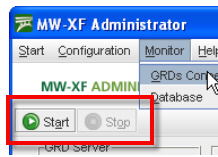
To do this we only have to press the “Start”  button located in the MW main screen.
Once this is done, the MW is ready to receive the GRD/cLAN connections, Redirectors of serial port and Modbus Masters, and connect to the database (in case it is enabled and configured).
The Start and Stop  buttons do not stop the MW service, they only act on the MW servers.
If when you press the start button it does not remain pressed as shown in the following figure, it may be that some of the TCP/IP ports used by the MW might be busy by some other service of your computer. Please contact support@exemys.com to get assistance on how to solve this problem.
If you need to configure the remote from a remote computer you can install the Remote administrator. You can download if from here: www.exemys.com/mwadmin
After opening it you will be asked for the IP address/URL where the MW ir running. You must also enter the MW's remote configuration user and password.
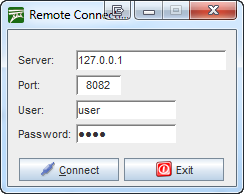
This user and password can be modified on the MW's adminitrador Start menu, Administrador Authentication option
2023-06-13