
After installing MW 6.0.0 you will find default certicates already create. Anyway, it's suggested to create your own certificates.
They will be used to encrypt the link between the GRCconfig software and the MW (for remote configuration) and to encrypt the link betweer GRD-XF-4G or cLAN-XF (firmware 3.2 or higher) and the MW.
Download and install the KeyStore Explorer software (https://keystore-explorer.org/)
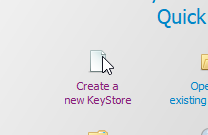
Open the software and clic “Create a new KeyStore”
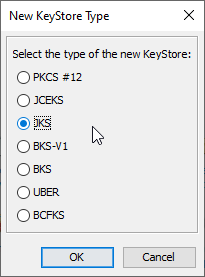
Select JKS
After pressing OK right click and select “Generate Key Pair”
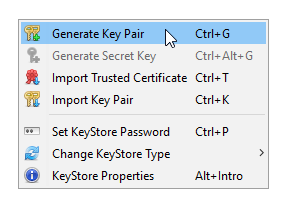
...with this options
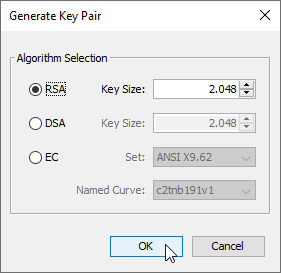
After pressing OK type your certificate data and expiration date.
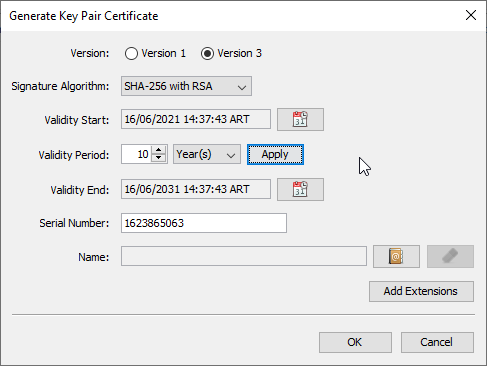
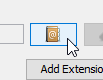
Click the "book icon con complete the certicate information.
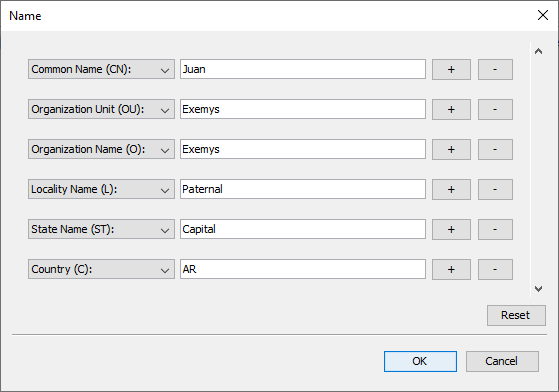
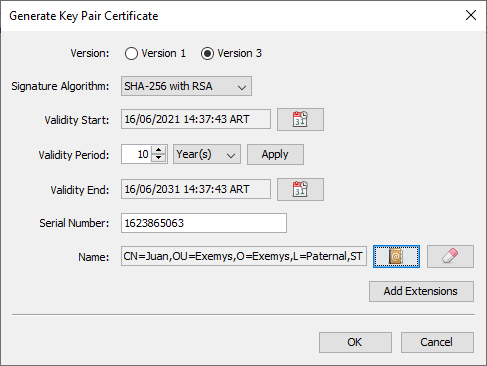
It must look like this after filling the information.
You will be asked for an Alias and a password. This password will be requiered for future changes.
Once the key store is created you must extract the certificate and the key.
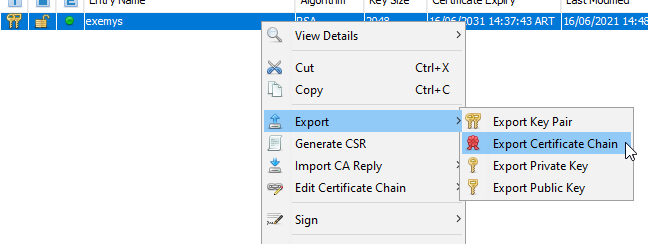
Right click and select
Haha clic derecho sobre lo creado “Export Certificate Chain”
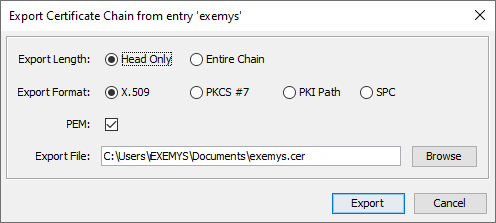
Save it following this options and press "Export"
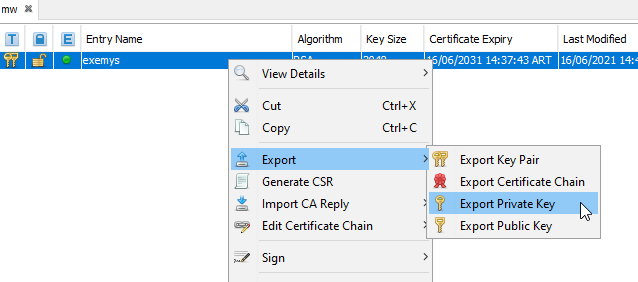
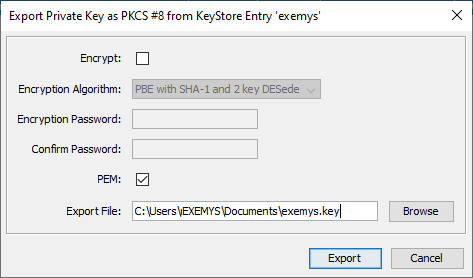
Right click again but now select “Export Private Key”
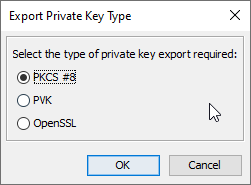
Save it following this options and press "Export"
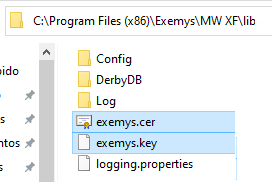
Copy the two generted files (.cer and .key) in the "lib" folder
C:\Program Files (x86)\Exemys\MW XF\lib
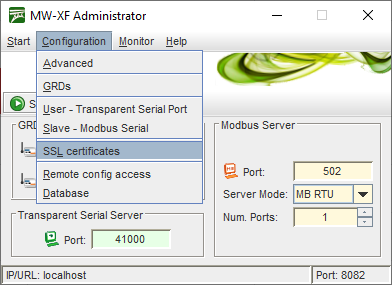
With the MW stoppped go to the section "Configuration" < "SSL cerfificates"
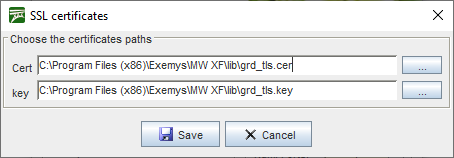
Finally configure the path for both files.
2022-03-18