GRDconfig is the application program used to configure the cLAN-MQ equipment.
This application was developed with an easy-to-use feature in mind to configure and monitor the cLAN-MQ and the GRD devices.
The Configurator is supported on the following platforms: Windows 7, 8, 10 and 11 (32 and 64 bits).
Java Runtime Environment 1.8 must be installed (available free in www.java.com). Since version 9.4 it works with Open JDK 17 too.
For installation follow these steps:
Once installed you will see in the Programs menu a folder called Exemys. Inside the folder you will find another folder called GRDconfig; this folder contains the GRDconfig and Uninstall icons and the Script Programmer folder.
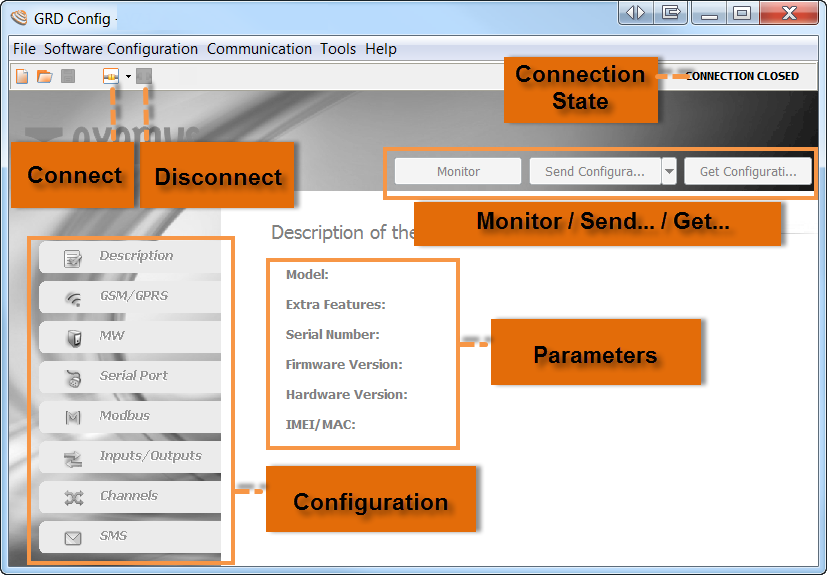
The following figure shows the main screen of the Configurator.
The cLAN-MQ can be configured locally through its Ethernet port. Before connecting the GRDconfig with the cLAN-MQ you must configure its network paramaters (IP address, Net mask, Gateway, etc)
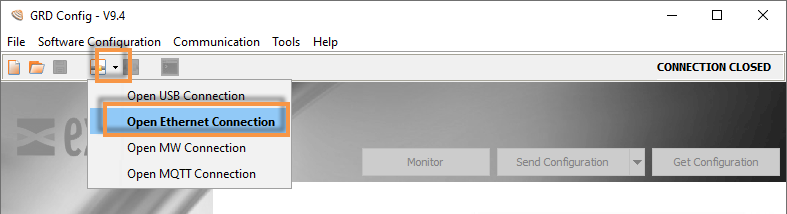
Press the triangle on the right of the "Connect" button and select "Open Ethernet Connection"
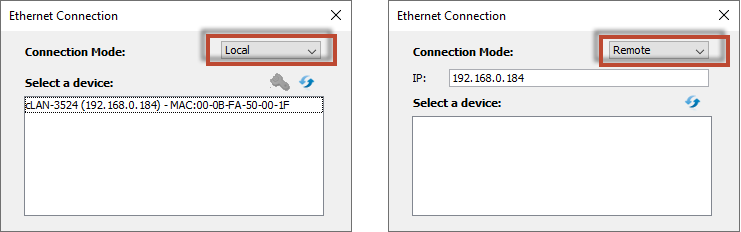
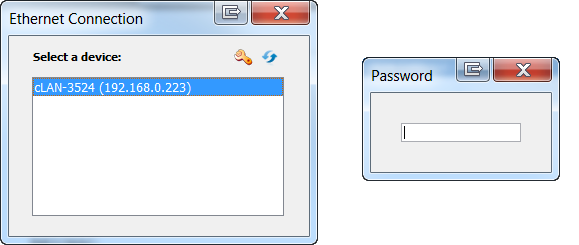
If there are cLAN-MQ devices connecter to your local network they will be listed, showing their IP address. If the device doesn't have an IP address yet it will show (0.0.0.0)
You can choose the "Remote" mode to manually type cLAN's IP address.
If you press the "config" button you will be able to see/edit the device network configuration
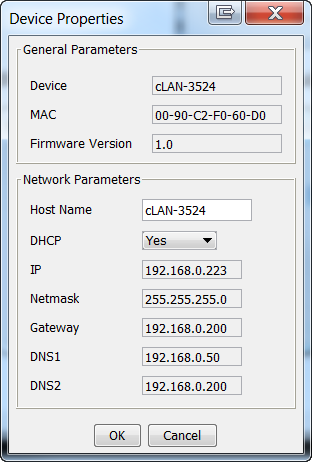
If you enable DCHP and there's a DHCP server on your network, these parameters will be assigned automatically.
If you configure the parameters manually, have in mind that the Gateway is only necessary if the MW if in the different network that the cLAN-MQ. DNS1 and DNS2 are only used if the MW's is located using a URL instead of an IP address.
If you are not using the Gateway or the DNS you can set them at 0.0.0.0
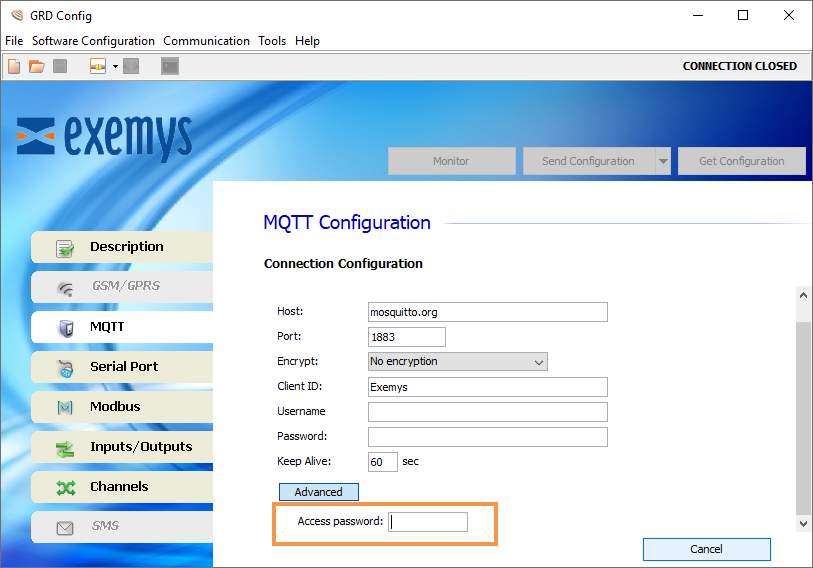
When changing these values the GRDconfig will ask you for a password. This password is configured in the "Advanced" section on the MQTT tab. Factory default is a blank password.
To establish a local connection with the cLAN-MQ (LAN/Ethernet), your computer and the cLAN-MQ mus be connected to the same network.
As described in the previous paragraph, search the cLAN-MQ pressing the Connect button (after choosing "Open Ethernet Connection") and then double click on the cLAN-MQ you wan to configure.
The GRDconfig will prompt a password. This password is the same the cLAN-MQ uses to connect to the MW. Factory default is a blank password.
|
If the Configurator finds an unknown model it will not enable any of the screens. Download the latest GRDconfig release from here: |
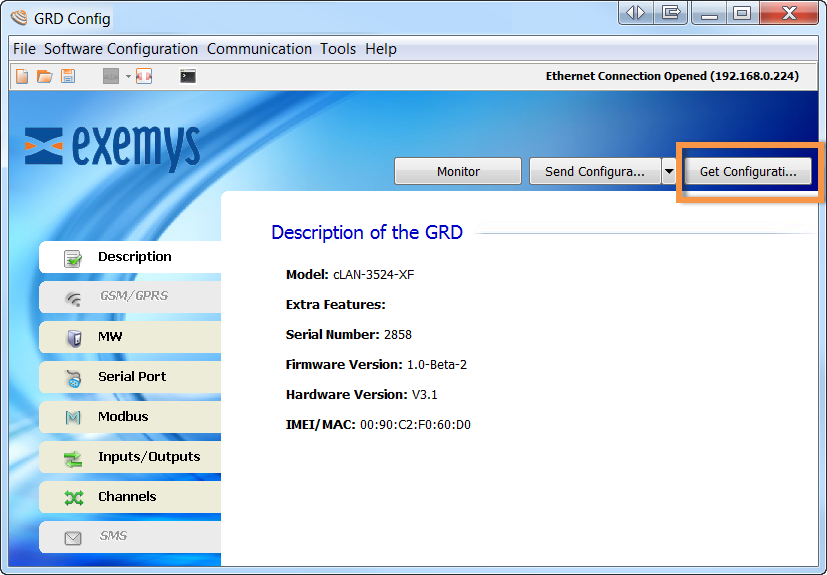
To obtain the parameters of the equipment you will have to press the “Get Configuration” button and all the cLAN-MQ parameters will be displayed on the first screen, the model, Serial Number, MAC address, etc.
|
If the Configurator finds an unknown model it will not enable any of the screens. Download the latest GRDconfig release from here: |
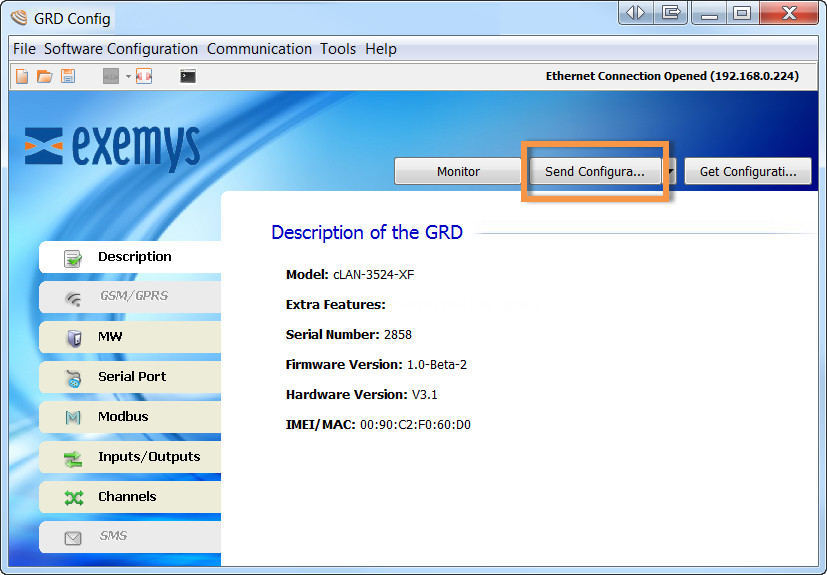
If you want to send to the cLAN-MQ any change in the configuration press the “Send Configuration” button.
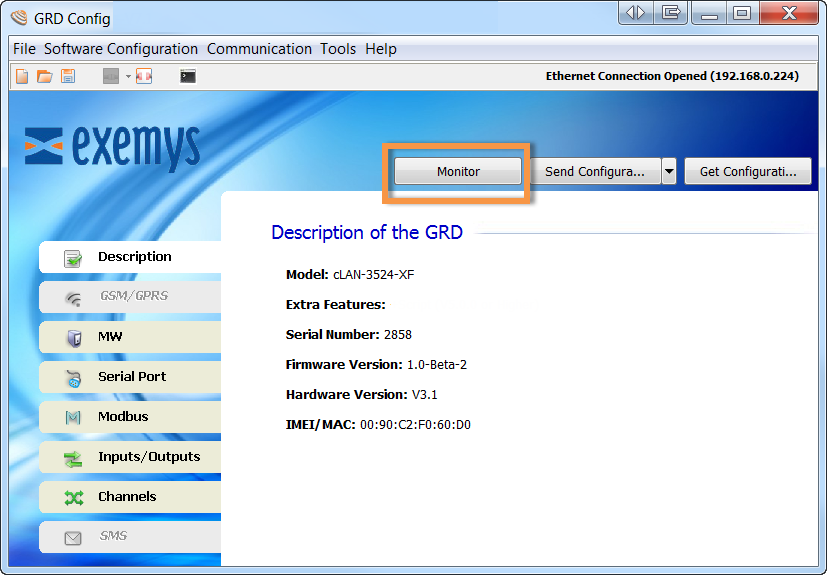
To access the monitoring area where all the GRD parameters can be seen, you should press the “Monitor” button.
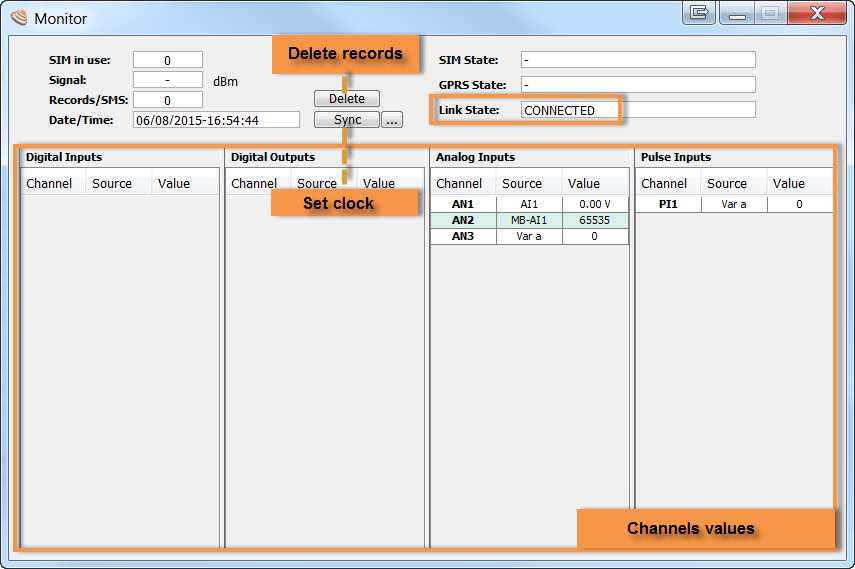
Once we enter monitoring the following screen will be displayed, in which we will be able to see the values of the input/output channels, the time, quantity of accumulated Historicals, the SIM in use and the states of connection of the equipment.
“GRDconfig” allows us to save the cLAN-MQ configuration so if we have to configure many equipments the same way, we won’t have to load again the parameters one by one, the only thing to take into account is that the ID number will have to be changed and avoiding to have a duplicate.
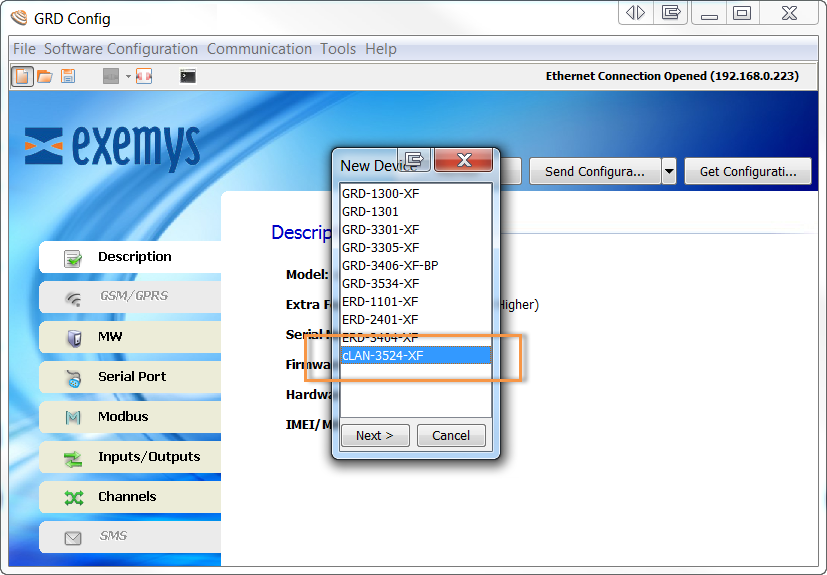
To create and save a configuration we don’t need to have a GRD connected, only clicking in “File -> New” or on the  icon a list of the models will be displayed from which we make the selection.
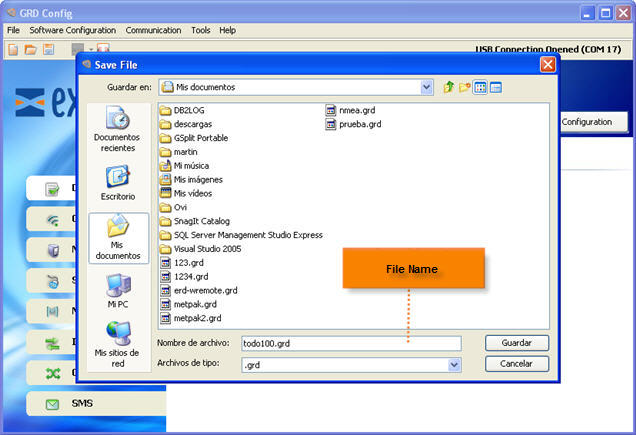
We then configure the parameters with “File -> Save As” or with the  icon to load them later when the GRD is connected.
Once the configuration is saved, we can open it and load to multiple GRDs entering “File -> Open” or with the  icon.
icon.