cLAN and Middleware
Connection between the cLAN-MQ and the broker
cLAN-MQ to broker connection configuration
Communication with Middleware uses a TCP connection. To be able to establish the connection it is necessary to:
- Configure the cLAN-MQ network parameters
- Configure correctly the connection from the cLAN-MQ to the broker
- Configure the MQTT connection parameters
- Have a MQTT broker server ready and running
Configuring the broker connection
The broker's address and port are configured on the MQTT tab

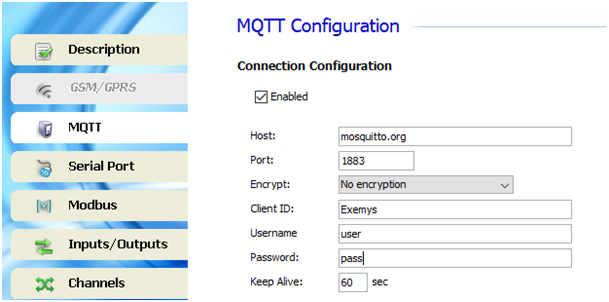
Enabling the connection with the broker
When this option is enabled, we tell the cLAN-MQ to establish connection with the specified configuration. If this option is disabled the cLAN-MQ will not establish outgoing connections.
The IP address or URL of the server where the broker is running must be entered here. The cLAN-MQ can resolve URLs using DNS.
Unencrypted connections default port is 1883. Encrypted port is tipically 8883.
Encrypt
The cLAN-MQ can establish the link without encription ("No encryption") or using TLS 1.2 and TLS 1.0
CA signed server certificate: No cerfificate required.
CA certificate only: You must upload the CA certificate for validation
Self signed certificates: You must upload CA certificate, client certificate and client key.
This parameters must match the ones configured on the broker.
Keep Alive
Time in seconds to send the MQTT keep alive message (to keep the link alive in case there's no other MQTT message)
Certificates upload:

|
You must be connected to the cLAN to upload the certificates.
They are not included in the configuration |
After pressing the "Certificates" this window will pop up.
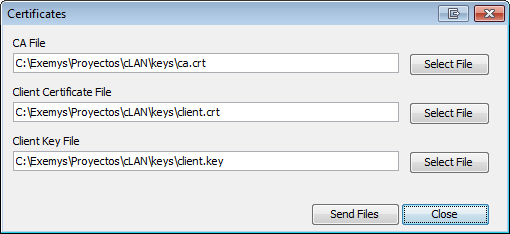
File format must be PEM
Advanced
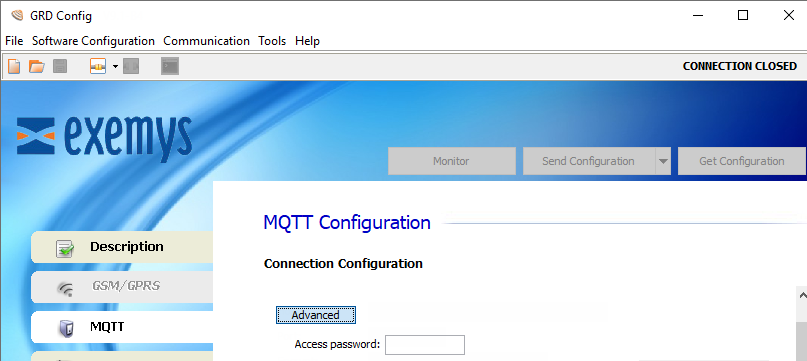
Access password
This password can be used to protect local configuration (over the LAN)
Monitoring the connection in the cLAN-MQ
To verify whether the entered configuration into the cLAN-MQ is the correct one we have the possibility of monitoring the status of the connection.
To access the monitoring screen of the configurator click on the “Monitor” button. Then, the following screen will be displayed:
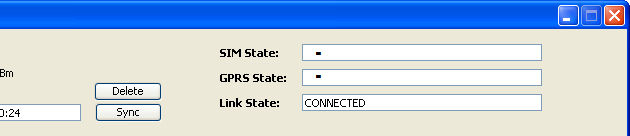
Link State
The TCP connection state can also be monitored. The possible TCP connection states are:
- Disabled: The TCP connection has net been enabled. In this state the Link LED is off.
- Connecting: The cLAN-MQ is attempting to establish a connection to the indicated IP address and port. If the cLAN is not able to establish the TCP connection, the length of time in this state might be an indication of a failure. If it remains in this state for a few seconds (less than 10), it might be trying a connection to a closed port. If it maintains the state during a minute or more it might be attempting to connect to a port and/or IP behind a firewall and is being filtered.
- Connection Failed, Host Unreachable and Connection Refused: The 3 states imply that the connection to the broker was not possible, but individually, they indicate the reason why they occurred.
In general, each one has a specific motive although it depends on the TCP connection on the server side for the indication to be correct, even so, any of the these 3 errors indicate a problem in the TCP connection.
- Connection Failed: This error appears when a connection to the configured IP is not possible.
- Host Unreachable: This happens when a connection to the IP is possible the port is open, through the router or firewall, but there is nothing connected to that port.
- Connection Refused: In this case the connection cannot be established because the configured port is closed, this could happen because a router or firewall are blocking it.
- Connected: The connection to the broker has been established.
- DNS Failure : The cLAN can't convert the URL into an IP address. Check if the IP address is OK and if the DNS servers are valid.
- Error: The event occurs if the connection was not completed after a certain time and no other type of failure was reported.
2020-11-19

