
When to consider doing it
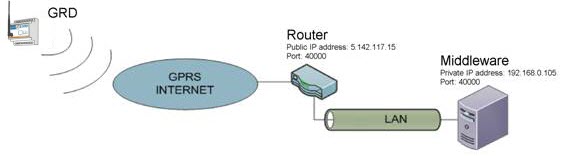
The GRD/cLAN performs outgoing TCP connections (client) to reach the MW. You might need open a TCP port on your router (port forwding) to allow the GRD/cLAN to reach the MW.
A) With GRD. The computer where you are running the MW doesn't have a public IP address, but it's connected to the internet using a router .
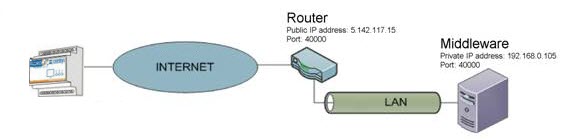
B) With cLAN. If the device is using the Internet to reach then MW, and the computer where you are running the MW doesn't have a public IP address, but it's connected to the internet using a router .
Getting the public IP address
Most routers will show you their public IP address in theirs web site “status” page. If you can’t find it there you can go to any of these web sites using a browser on any computer connected to that network. They will show you your network’s public IP address.
Getting the MW's private IP address
This procedure may vary a little depending on your Windows version.
In Windows XP, follow these steps:
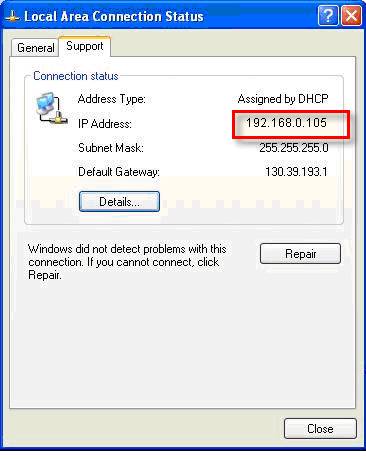
In Windows 7, follow these steps:
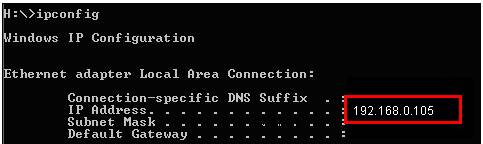
In any windows version you can type “ipconfig” on the command prompt and get your computer’s IP address
|
We suggest using a fixed ip address (Not assigned by DHCP) because you will have to type this IP address on the router configuration |
Configuring Port forwarding
According to the router's manufacturer, port forwarding can also be called “virtual server”, "port openning" or “NAT”.
We’ll give you an example here, but if it’s not a good guide to configure your router please check your router’s manual.
Gaining access to the router
To configure the router you will it’s IP address, user name and password.
The router’s IP address is the default gateway IP address.
You can find it while determining the private IP address.
If you don’t have the user name and password of your router try the default ones that you’ll find on the router’s user manual.
Open a browser window and type your router’s IP address. You’ll be prompted to enter the user name and password
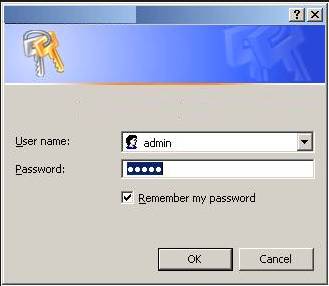
Openning the port
Once you are logged into the router’s web server you can open the port used by the GRD to access the MW. The default port is TCP 40000.
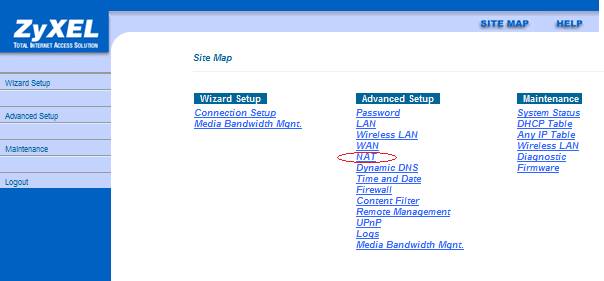
You’ll have to configure to open port TCP 40000 to the MW’s private IP address.
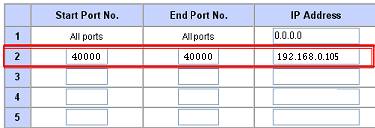
Configuring the GRD/cLAN
Once the MW is ready, configure the public IP address in the cLAN/GRD configuration
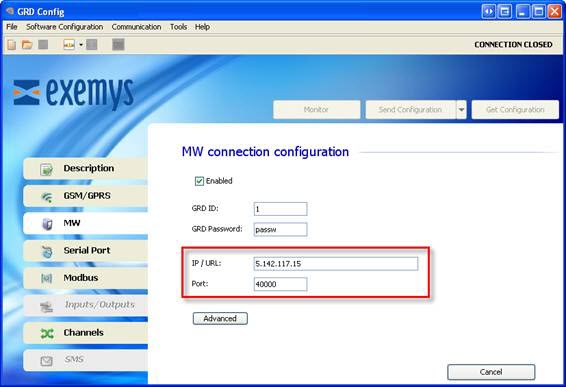
Dynamic public IP address and Dynamic DNS services (DDNS)
The MW’s IP public address should be a fixed IP address in order to allow the GRD/cLAN to maintain the link with the MW.
If you don’t have a public fixed IP address you can still use the GRD/cLAN and the MW in your network, but you must notice that the GRD/cLAN will loose the link to the MW as soon as the public IP changes.
You can configure the GRD to access a new IP address by SMS as described in the GRD’s user manual in section “SMS alarms and configuration / SMS - Monitoring and Configuration”
To have a permanent solution to this issue you can use any Dynamic DNS provider (DDNS). Here’s a list with some of them:
www.Dyndns.com
www.No-ip.com
www.zoneedit.com/dynamicDNS.html
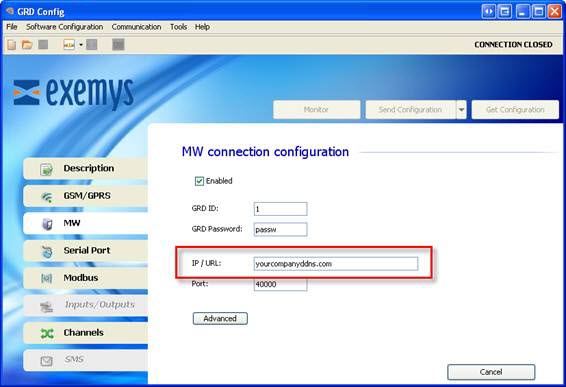
Once you link your public IP address with a URL using one of these DDNS providers, the GRD/cLAN will re establish the link to the MW in a few minutes every time the public IP address changes. You must then configure the URL instead of the public IP address on the GRD/cLAN.
2015-08-06
