

Communication with Middleware uses a TCP connection. To be able to establish the connection it is necessary to:
All TCP connections need a Server which awaits a connection request in a pre-established port and a client that, at the right time, will establish the connection to such server. ERD equipment work as TCP clients, so we must have a Server (MW) to wait for the connection request. We now explain how to configure the ERD to establish communication with Exemys Middleware. We enter the MW menu and configure the following parameters:
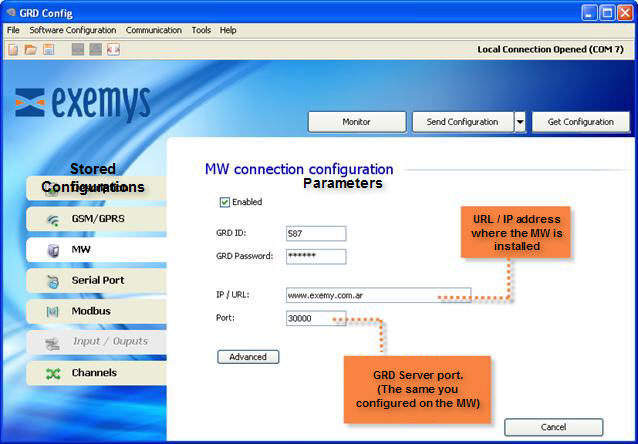
When this option is enabled, we tell the ERD to establish connection with the specified configuration. If this option is disabled the ERD will not establish connections.
The IP address or URL of the server where the MW running must be entered here. It must be a public IP address/URL. The ERD can resolve URL's using DNS.
The server port must be entered in this field.
The ERD must be connected to a MW, this is why it is absolutely necessary to place an ID number to identify the ERD at the moment of connection and with a password if necessary.
If the ERD must establish a connection with the Middleware (MW), it has to be identified in order for the MW allows to remain connected. The ERD ID is part of this identification. If the MW has not configured such an ID as valid, it will close the connection with the ERD, this is a number from 1 to 4000 and it must be unique.
The ERD equipment has a password for authentication with the MW, therefore, at the moment of connection the ERD password is verified against the MW password, if there is a coincidence, the connection is accepted. Additionally, ERD equipment can be configured and monitored through SMS messages. In the case of the configuration, it can be protected with a password. So when the SMS is sent, it must include the password to be able to make modifications. The password should have a maximum length of 8 characters.
This is the time the ERD takes to decide that the connection with the MW has been closed.
|
This concludes the basic configuration of the ERD. |
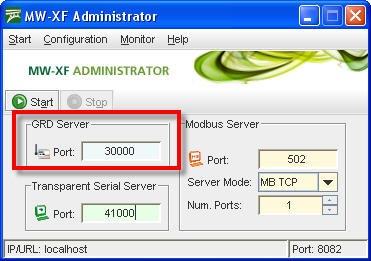
The port in the MW must have the same configuration as the one in the ERD, that is the TCP port through which the “GRD server“ connections are received. This port must be ready to receive connections, which means that it should not be blocked by any type of firewall or router.
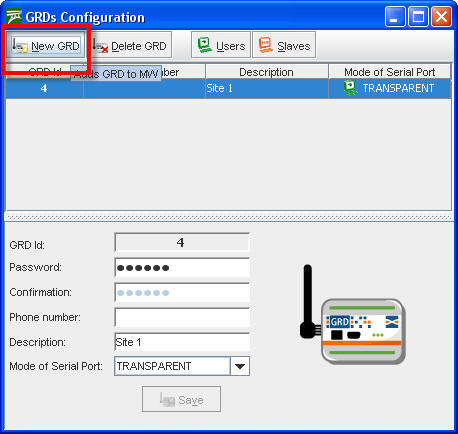
We first create a ERD with the same ID as the one loaded previously in the equipment, this is done from “Configuration -> GRDs” click on “New GRD”.
The password must be entered if there is one previously loaded in the equipment, otherwise, it should be kept blank.
The “Telephone” and “Description” parameters are optional, these help the user with the identification of the ERD beyond the ID.
As to the "Serial port mode” we select as an example “Not Configured”, this refers to the mode of operation of the ERD serial port, in this case it will not be used.
The 2 operational modes will be detailed later, as at the moment we just want to establish the connection between the ERD and the MW.
|
With this, the ERD is added so the connection can be established. We end the basic configuration in the MW. |
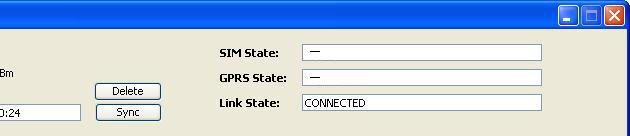
To verify whether the entered configuration into the ERD is the correct one we have the possibility of monitoring the status of the connection.
To access the monitoring screen of the configurator click on the “Monitor” button. Then, the following screen will be displayed:
Link State
The TCP connection state can also be monitored. The possible TCP connection states are:
GRDs connected to the MW can be monitored, this can be done by accessing “Monitor -> GRDs Connected” , a list will be displayed showing all GRDs added to the MW ordered by ID, and showing if it is connected and if it is so it will show its IP address.
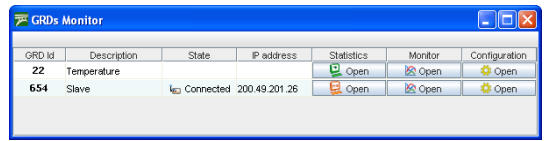
Statistics are made based on the quantity of information received and transmitted. The information given by these statistics differ according to how the ERD type was defined.
To have access to statistics of each ERD the button located in the statistics column must be pressed.
When the ERD shows the serial port mode as “NOT CONFIGURED”, we will not be able to access the statistics.
The Modbus statistics screen is shown below:
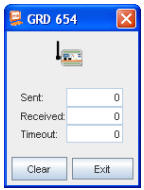
When the ERD is connected the windows is displayed as enabled, on the contrary if the ERD is disconnected the Windows is shown in grey as disabled.
The window shows the number of packets sent to the ERD and received from it, those queries sent that are unanswered are part of the Timeout count.
The erase button resets the counters to zero.
The transparent mode statistics screen is shown below.
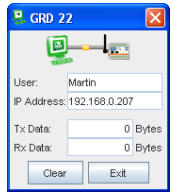
When the ERD is connected and a user is connected to the MW pointing to that ERD, the screen will be shown as enabled.
In the statistics of the transparent mode we can find the name of the user and the IP address to which he is connecting, as well as the number of bytes transmitted to the serial port of the ERD and bytes received from the serial port of the ERD.
The erase button resets again the counters to zero.
