The wRemote Config is provided by the application program that is used to configure wRemote devices.
This application was developed with an easy-to-use philosophy and allows for the configuration and monitoring of wRemote devices. The configuration program can be installed on Windows 2003, 2008, Vista, XP, 7, 8 and 10
To install it follow these steps:
Once installed you will see in the programs menu a folder titled Exemys, inside this folder there will be another titled wRemote Config; it contains program icons and the manual to uninstall.
Note: With the installation of the configuration program other wRemote USB drivers are installed for different operating systems.
he driver installation is performed in conjunction with the “wRemote Config”; in other words to connect to the PC, the wRemote should be recognized automatically.
If for some reason this does not happen, and the requested operating system folder can be located manually.
“C:\Program Files\Exemys\wRemote Config\Drivers\"
The image below shows the main screen for the software.
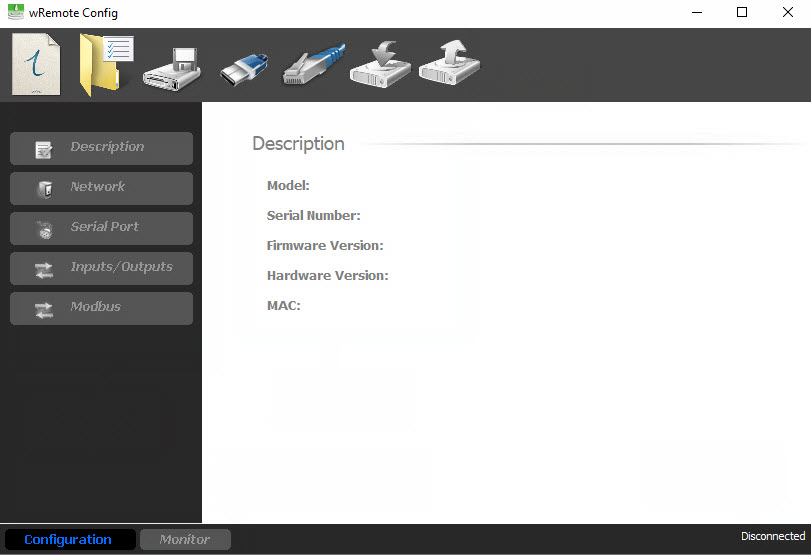
Once installed, the software should not configure any parameter from the USB port as this automatically recognizes the COM in the connected wRemote.
In order to connect with wRemote the computer should be connected with the equipment using the cable described in “wRemote models installation”.
To establish the connection select the “Open Connection” option on the menu represented by the USB icon.  .
.
If the communication fails check that:
After a while you will be able to see on screen a list of devices that have connected, quoting the model and serial number. To connect we just have to double click on which ever device you want.
If the list is blank and you are sure that the wRemote is connected properly you can refresh the list by pressing clicking “refresh”.
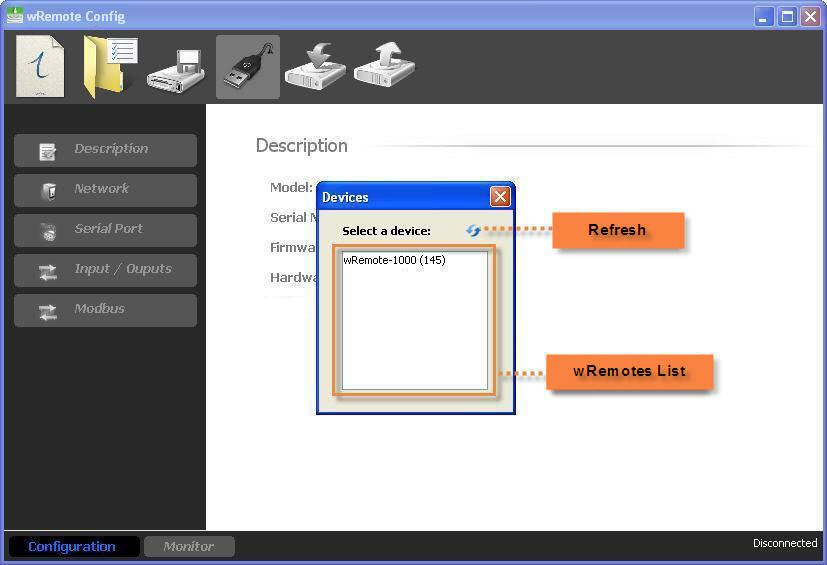
After double clicking on the wRemote, see in the lower right corner, the state of the software will change to “Connected”.
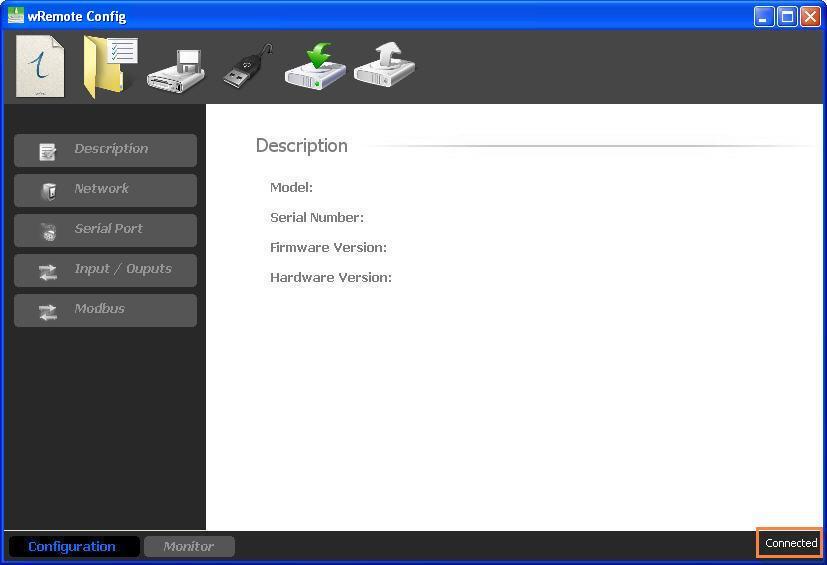
In order to obtain the parameters from the equipment you must press the “Read Configuration” button  .doing so will download all of the data from the wRemote indicated on the first model screen, etc
You should always make a reading of the wRemote parameters in order to modify or monitor them.
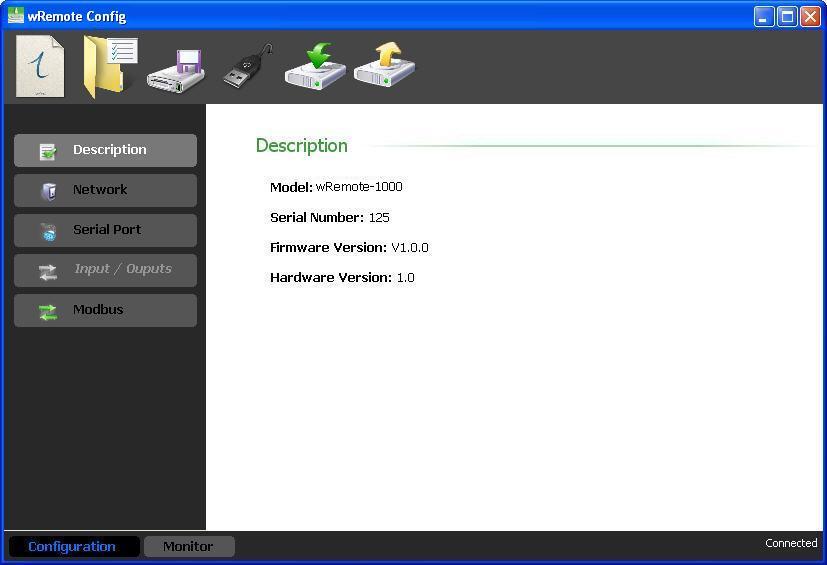
|
If the Configurator detects an unknown model it will not enable any of the tabs. In that case, contact us at support@exemys.com to obtain the updated version of the software or download it from here: www.exemys.com/grdconfig |
If you want to send any configuration change to the wRemote, you should press the “Write Configuration” button
To access the monitoring in which the state of all wRemote parameters are located, you must press the ‘Monitor’ button. To return to the setup screen press the button with the same name.
The monitoring screen that will appear depends on the equipment you have connected; this means that when connecting a computer “hub” the screen will display certain parameters and others if we were to connect a “Node”.
Monitoring of a "Concentrator"
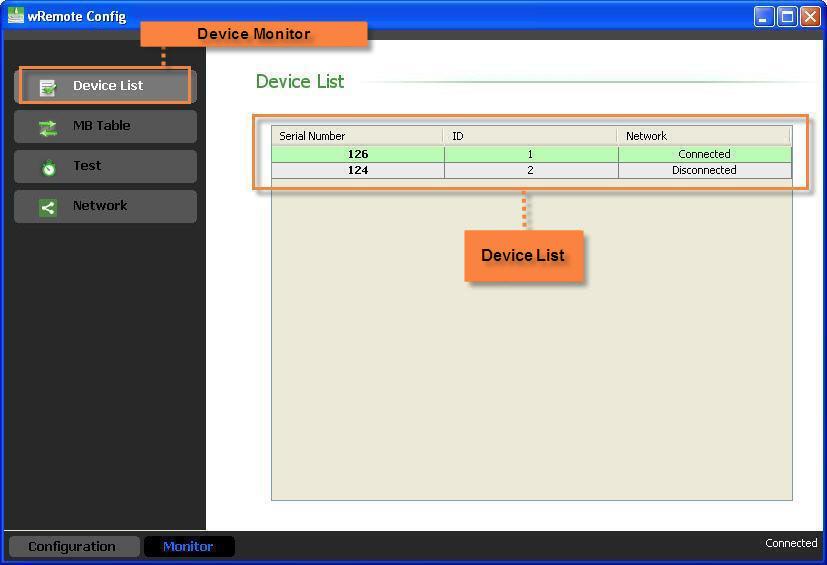
If we have connected a “Concentrator” we see the following screen:
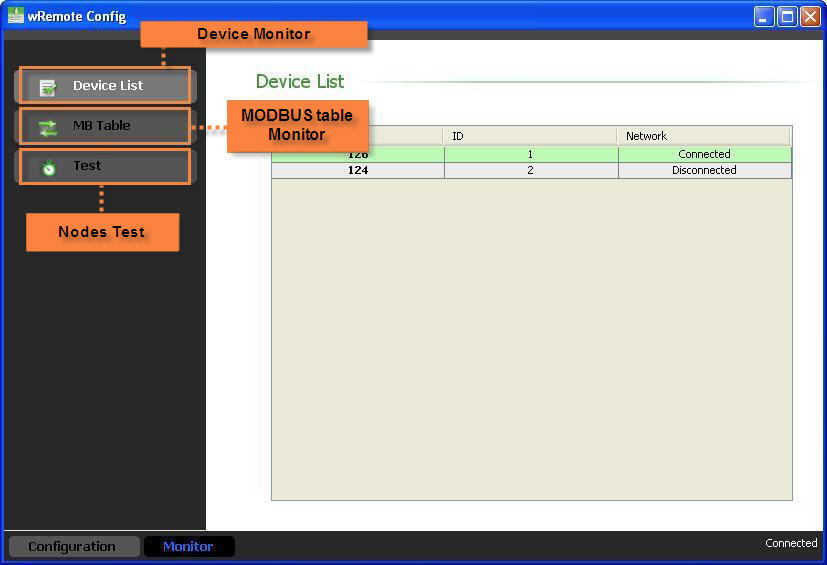
On this screen we will have 2 types of monitoring; one will be “Device List” where we see the “Nodes” equipment connected to this “Concentrator” and their state. You will also be able to connect and disconnect by assigning them an ID. Double click on any of the devices that are connected and access the configuration remotely the same.
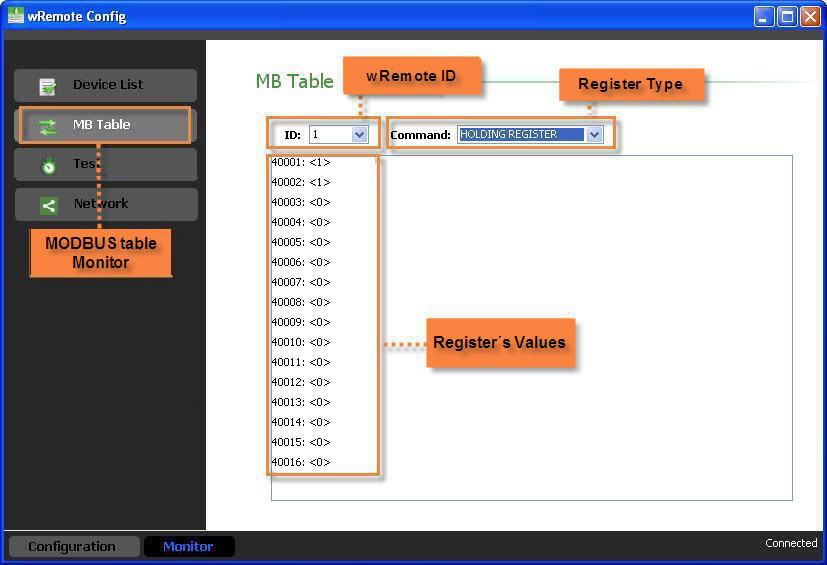
The other type of monitoring is “MB Table”, in this table we are able to see the Internal Modbus table of the “Concentrator” which contains the status of the inputs / outputs and connect the “Nodes” by “ID” divided into Input Status, Coil Status, and Holding Registers.
The Input Status belongs to the digital inputs, the Coil Status to digital outputs, and Holding Register to Connection State. The digital inputs and outputs are mapped to a 16-bit log and the analog inputs and outputs in a separate log, one for each.
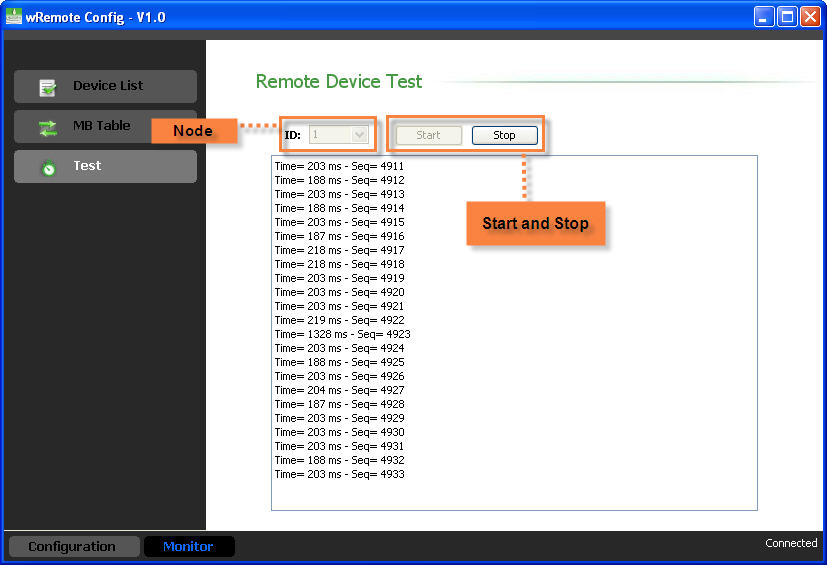
We also have the option to test, this allows us to verify the quality of connection to a particular “node” that sends and receives packets by measuring the time it takes to return a response.
To do this we need only select the “Node” and click “Start”, after that we will se packets arrive identified with a sequence number and response time, to stop click “Stop”.
In case of a lost packet we should look at the label “Request Timeout”.
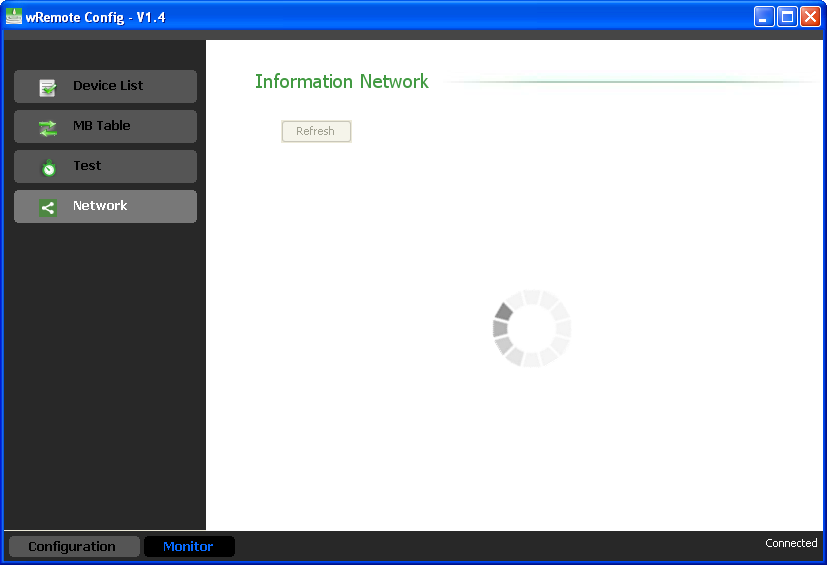
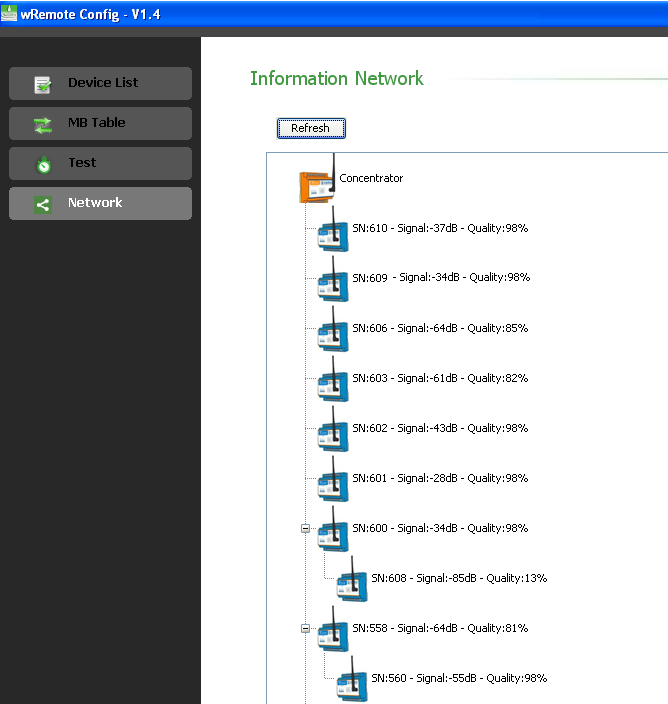
We also have the opportunity to see how the network is formed, the signal level and quality of the Nodes; this is done from the network tab.
Here we have to click on the “Refresh” button, the Concentrator the queries remotely the parameters of the Nodes, this process may take a while depending on the number of devices.
Finally we will see a tree that represents that the equipment is connected, and show the signal levels and quality. As we can see in the picture above, not all nodes are connected directly to the Concentrator but pass through another node, because the equipment has the ability to form mesh network.
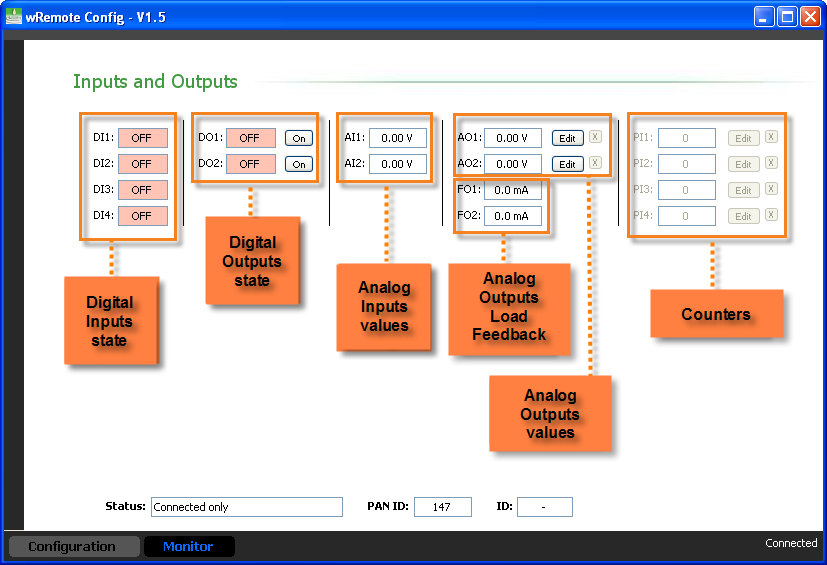
As for the nodes to connect locally or via the “Concentrator” and enter the monitoring option, we will see the connection status and the inputs / outputs.
Each analog output has an indicator box (Input Feedback) associated that lets us know the state of the output. The voltage indicates to us the current that is delivered to the load whose maximum is 20mA and if you exceed this it will read “Over Load”. It acts the same way with current but will indicate the load connected to be high (depending on supplied voltage) and display “Open Loop”.
From here we are also able to modify the value of both digital and analog outputs and counters.
The “wRemote Config” allows us to save the configuration of a wRemote so that if we need to setup more equipment in the same way, we do not have to reload the parameters one by one.
To create and save a configuration it is not necessary to have a connected wRemote, just click on “New” represented by the icon  , a list of models that you can configure will appear.
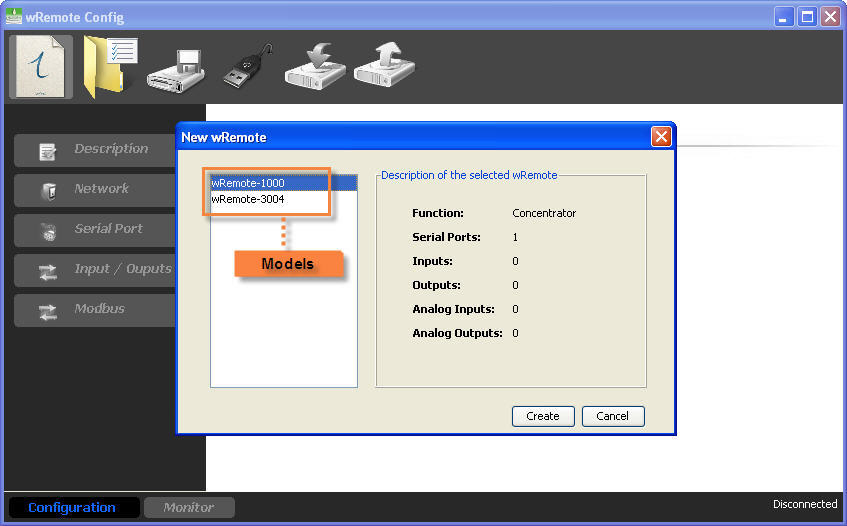
Then configure the parameters and save with “Save”  and then when we have our wRemote loaded and connected, the type of file to be saved is “*.wre”.
Once you save the configuration we can open and load multiple wRemotes entering “Open”.  .
.
In the same way we can read an existing configuration and save a wRemote then upload it to another.
2021-11-12