

The manager of forming the network is the "Concentrator". If we connect it to the "wSerial Config", read the configuration and go to the"Network" tab, we will see the parameter called "PAN ID". This number is between 1 and 65534 and is what the network takes. The factory value is 100, meaning that if we turn on the equipment for the first time and we do not configure it equally, it will form a network with the number 200.
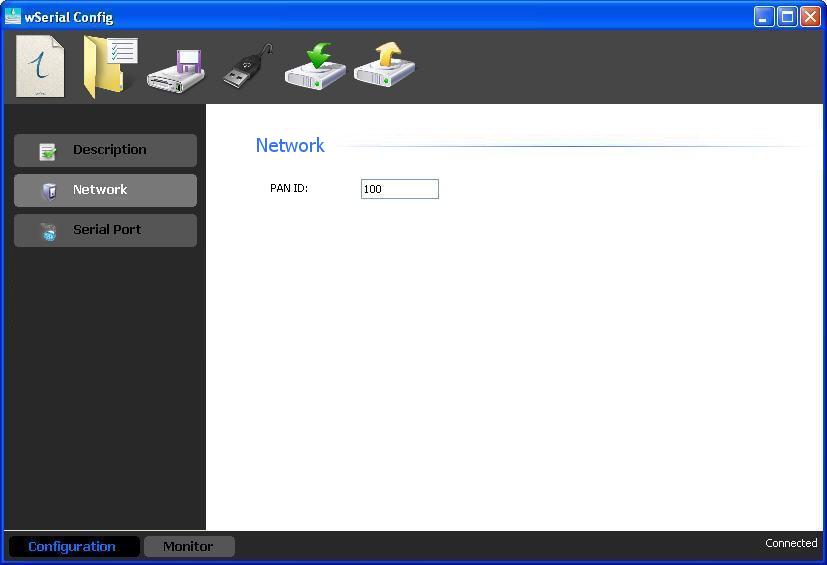
Once the "Concentrator" has formed the network, we will see that the led of the link stops blinking and it will remain on.
Now we will see how to connect the "Nodes":
These have the option of detecting the network automatically which is enabled in the same tab "Network". This is the value that comes from the factory, so that if we turn them on and there is a "Concentrator" that has formed a network that connects automatically, we can also configure it manually.
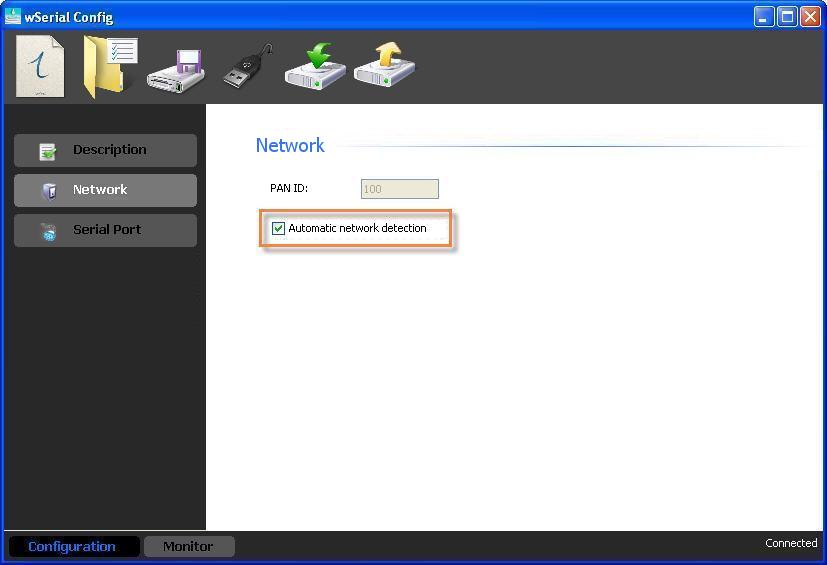
Once we have connected the "Nodes" we can link them to the "Concentrator".
Next we will see an example from the homescreen of how to form a network and link "Nodes" devices to the "Concentrator".
Suppose the following equipment:
Serial Number : 125
Serial Number: 126
Serial Number: 124
All the devices have factory settings.
First we turn on the equipment, then we connect by USB the "Concentrator" to a PC and open the " wSerial Config". We read the parameters and decide if we leave the "PAN ID" in 100 or choose another. In this case we leave 200 and we wait as the network forms, we record what occurs when the led of "Link" stops blinking.
Once the network is formed, the "Nodes" connect to the same since they are configured in autodetection. We will realize this because the led of "Link" will start to blink slowly to quickly.
In the " wSerial Config" that is connected to the "Concentrator", we go to the "Monitoring" screen and "Device List", if the "Nodes" are already connected, we will see something like this:
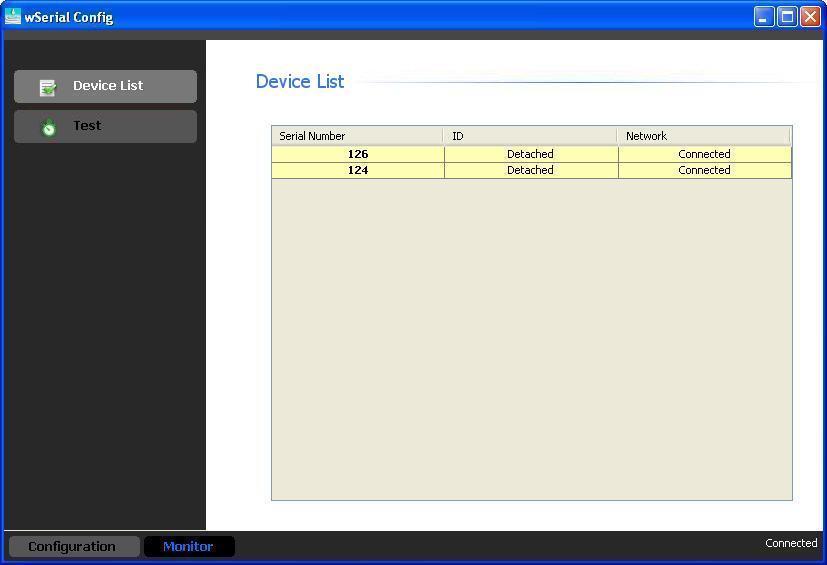
As we can see in this table, the 2 "Nodes" in yellow with the parameter "ID" in "Detached" and "Network" in "Connected" is to say that they are connected but not linked to this "Concentrator"; the linking implies that the "Nodes" will begin to send their parameters to the "Concentrator" and when they are off and return to on, they will connect anew to this "PAN ID" because it disables the autodetection, otherwise it will only maintain connection without transmitting the data and if it is off and returns to on, it will look for a network automatically.
To link them we must right-click on what we want and we will see the option of "Attach ***" where *** there will be an equipment serial number, we click on it and it will open a window where we can select the "ID" number for that "Node".
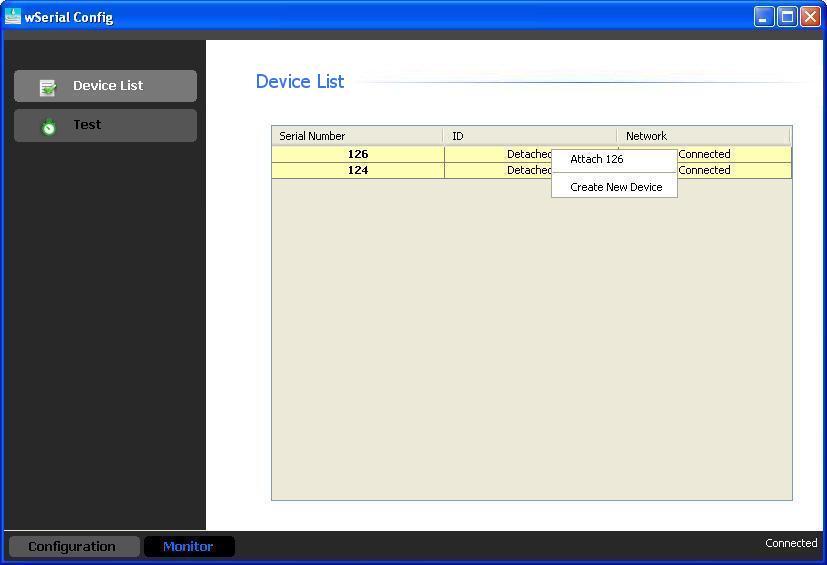
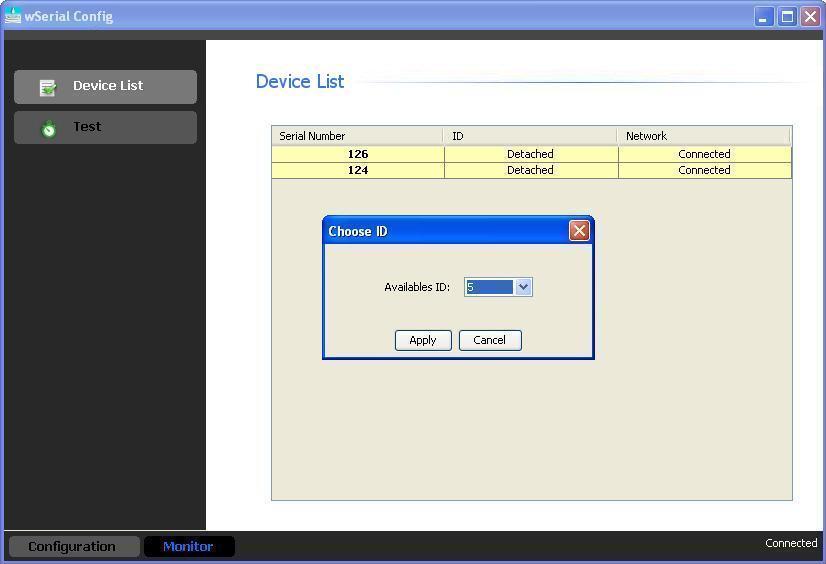
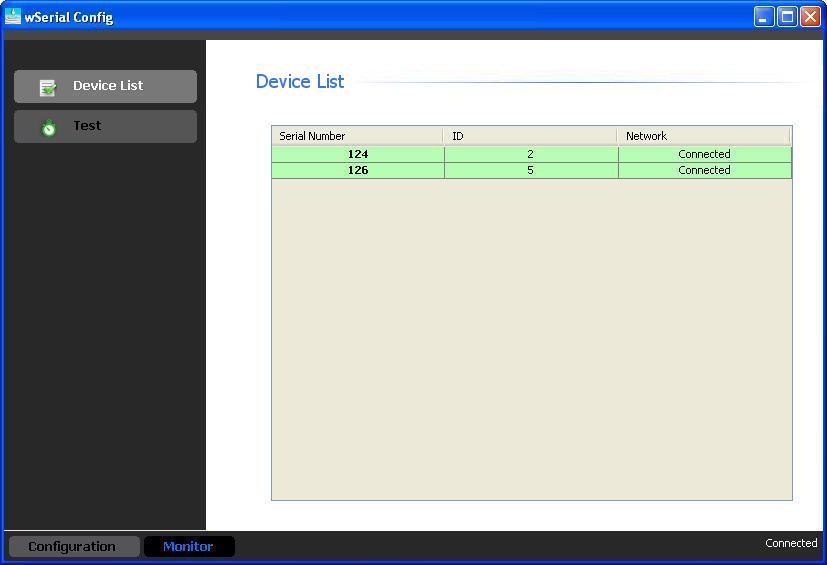
We link the two "Nodes" and we will see that the parameter "ID" changes from "Detached" to the number that we selected and it is in the color green. In this case we select the ID = 2 for the serial number 124 and the ID = 5 to 126.
In the "Nodes" we will see that the led of "Link" will stop blinking rapidly and it will remain on indicating the linking.
|
It is very important to keep in mind that upon linking the "Nodes" these estbalish their "PAN ID", meaning that the network autodetection will be disabled. If for some reason you change the "PAN ID" of the "Concentrator", and we want the "Nodes" to connect anew to this, we will have to change the "PAN ID" locally or by pressing the "Reset" switch. The "Reset" switch frees the equipment "Node" and puts it on autodetection. |
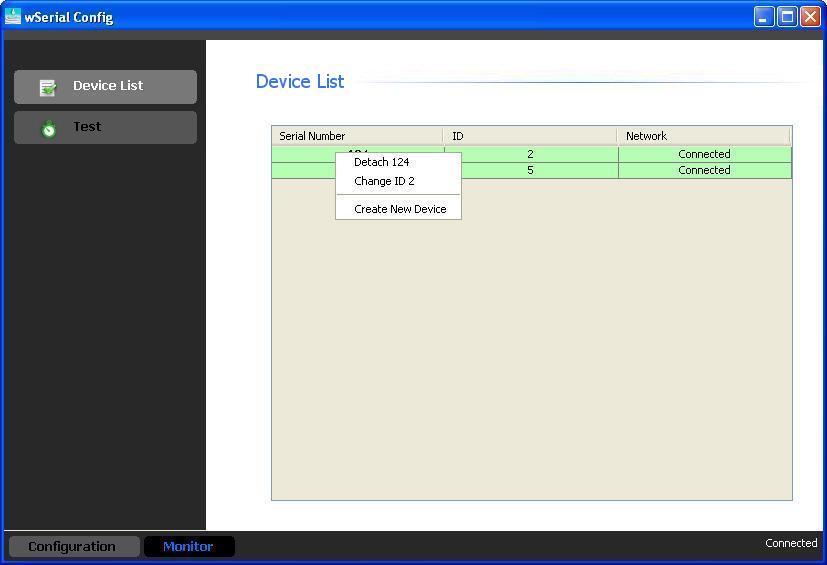
Once linked, we can unlink them the same way that they we linked them, by right clicking on the one we want but now selecting the option "Detach ***" or changing the "ID" with the option "Change ID".
|
It is important to clarify that we can also link a "Node" before connected with the option "Create New Device", only we have to know the serial number of the equipment and assign it an ID. |
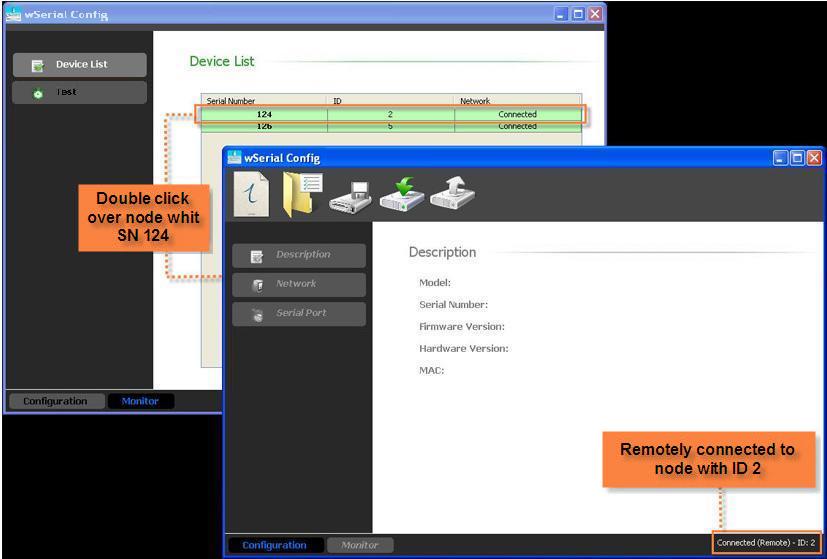
If we double click on the "Node" that we find connected, we can enter the configuration in remote form, upon doing this, another " wSerial Config" window will appear as if we were connecting locally giving us access to all it’s parameters.
|
When we unlink a "Node" this frees the "PAN ID" that we had configured and re-enables automatic network detection, meaning that it will connect to the closest network, that may or may not be that same to which it was connected/em> |
Once we have the devices "Nodes" linked, we are able to begin using them in any of their operating modes.
Suppose that we have 2 "Concentrators", or formed 2 networks. For this to happen, it is mandatory that we configurethe different "PAN IDs".
Now surely we will have "Nodes" that we are going to want to connect to the "Concentrator" and others to another. In this case it is important to pay attention to the "PAN IDs". If the "Nodes" are configured in automatic detection, they will connect to the network with more signal which may not be what we want. We can resolve this in the following forms:
One method is turning on the networks separately, or turning on the "Concentrator" and the "Nodes" that we want to connect between and from the "Concentrator" configuration, link them so that they only reconnect to it, and then do the same with the other network.
Another form is pre-configuring the "PAN ID" manually to all of the devices accordingly.
It is important to keep in mind that if we unlink a "Node" this will disconnect and upon reconnecting, it may not connect to the same network if it detects another network with better signal.

